You already know your data is being collected. Every search, every click, every “free” app is feeding a profile that gets sold, traded, and sometimes stolen. But here’s the thing: protecting your privacy isn’t about becoming invisible, it’s about taking deliberate control of what you share and who gets to see it.
According to the National Institute of Standards and Technology (NIST), weak or reused passwords are a leading factor in account takeover attacks, and the average person has over 100 online accounts. The good news? You don’t need to be a tech expert to lock things down.
You just need a system, and that’s exactly what this guide gives you.
Quick Answer
Protect your privacy by starting with three habits. Use a password manager to create unique passwords. Turn on two-factor authentication for your email and bank.
Switch to a privacy-focused browser like Firefox or Brave. Then audit your social media settings, remove your info from data broker sites, and use a VPN on public Wi-Fi. Small steps, big difference.
Why Online Privacy Matters More Than You Think
Let’s clear something up: privacy isn’t about hiding from the government. It’s about protecting yourself from three very real threats that affect ordinary people every single day.
The cybercriminal. This is the person trying to drain your bank account. They use phishing emails, stolen password lists, and malicious software. They don’t care about your secrets.
They care about your money. According to the FBI’s Internet Crime Complaint Center, Americans lost over $10 billion to cybercrime in 2022 alone.
The data broker. These are companies you’ve never heard of that buy and sell your personal information. Your shopping habits, your political leanings, even your health interests get compiled into profiles and sold to advertisers, insurers, and anyone else willing to pay.
Corporate surveillance. Google, Facebook, and Amazon track your activity across the web to maximize engagement and sell you things. They often do this without you realizing it. That’s why you see ads for products you only mentioned out loud.
The “nothing to hide” argument misses the point. Privacy isn’t about having something to hide. It’s about having something to protect.
Your identity, your finances, and your autonomy all depend on controlling your personal information.
Privacy also isn’t the same as anonymity. Anonymity means being untraceable. Privacy means choosing who sees what.
You can be private while still using social media, shopping online, and living your digital life normally. The goal is intentionality, not invisibility.
As of 2026, the digital landscape has only gotten more complex. AI tools scrape public data, smart devices listen in your home, and data breaches hit new records every year. The stakes are higher, but so are the tools available to protect yourself.
The Core Facts Everyone Gets Wrong
There’s a lot of bad privacy advice floating around. Let’s bust the biggest myths so you’re not wasting time on things that don’t work.
Incognito mode does nothing for privacy. It only stops your browser from saving history locally. Your internet service provider, your employer, and the websites you visit can still see everything. Think of it as a clean slate for your browser, not a cloak of invisibility.
“They already have my data” is a trap. Yes, some data is out there. But that doesn’t mean you should hand over the rest. Every piece of information you protect makes you a harder target.
Data minimization is the core principle here, the less you share, the less there is to steal.
Free VPNs are not your friend. Many free VPN services actually sell your data to fund their operations. You’re not the customer, you’re the product. The only free VPNs worth considering are ProtonVPN and a few others that operate on a transparent, privacy-first business model.
The government isn’t your biggest threat. For most people, the real dangers are cybercriminals and data brokers. Government surveillance exists, but it’s not what’s going to drain your bank account or spam your inbox with targeted ads.
Your browser’s built-in password manager is not enough. It’s better than using the same password everywhere, but it can’t tell you if a password was compromised in a breach. Dedicated password managers like Bitwarden and 1Password offer breach monitoring and secure sharing features built in.
Privacy settings aren’t “set and forget.” Companies update their policies and defaults constantly. What was private last year might not be private this year. Regular audits, even just twice a year, keep you in control.
The most dangerous misconception is that privacy is all-or-nothing. It’s not. Every step you take reduces your risk.
Even small actions like turning off location tracking for your camera app make a meaningful difference.
The Non-Negotiable Foundation
If you do nothing else after reading this guide, do these three things. They form the foundation of any serious privacy setup.
Password managers are non-negotiable. Using the same password across multiple sites is like using the same key for your house, car, and safe deposit box. When one gets compromised, they all do. A password manager like Bitwarden generates unique, random passwords for every site and stores them in an encrypted vault.
You only need to remember one master password. That’s it. Bitwarden is free, open-source, and audited by third-party security researchers. 1Password is the premium alternative if you want a more polished interface.
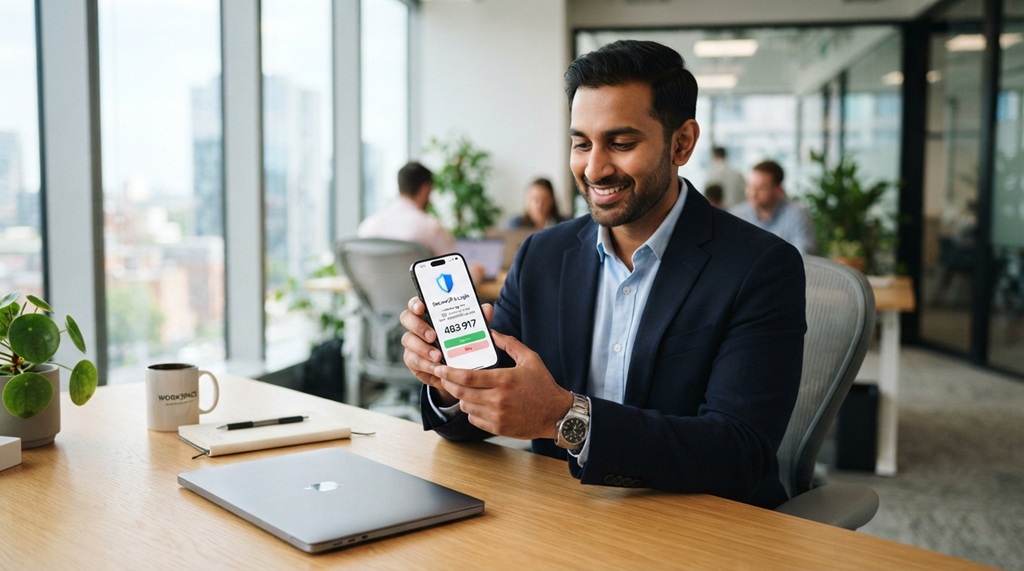
Two-factor authentication, or 2FA, adds a second lock to your account. Even if a hacker steals your password, they can’t get in without the second code. The hierarchy matters here. SMS text codes are the weakest form, they’re vulnerable to SIM-swapping.
Authenticator apps like Authy or Google Authenticator are much better because the code lives on your device, not in the cellular network. Hardware keys like YubiKey are the gold standard. They’re physical devices that plug into your computer or tap your phone, and they’re nearly impossible to phish.
Your browser is your window to the internet, so choose it carefully. Chrome is convenient, but it’s also a massive data collection tool for Google. Firefox, with its Enhanced Tracking Protection set to Strict, blocks cross-site trackers, fingerprinting scripts, and crypto miners by default. Brave goes further by blocking all ads and trackers out of the box.
Both are free and open-source. Pair either with uBlock Origin, a content blocker that stops malicious ads from loading in the first place.
These three tools work together. The password manager keeps your accounts secure. 2FA adds a second layer. The browser stops the tracking that feeds the data broker machine.
Skip one, and you have a gap in your armor.
Still using Chrome because you like how it looks? You can switch your search engine to DuckDuckGo and limit the data Google collects. Change your privacy settings in Chrome to block third-party cookies.
It’s better than nothing, but it’s not ideal. The best time to switch browsers was five years ago. The second-best time is today.
Step-by-Step Guide: Locking Down Your Accounts in One Weekend
You don’t need a month to get your privacy in order. One focused weekend will transform your digital footprint. Here’s the exact process, step by step.
Step 1: Set up a password manager. Start with a completely fresh master password. Make it long, at least 16 characters, and don’t reuse anything you’ve used before. A passphrase like “Blue-Falcon-Sings-At-Dawn-42” is easier to remember and harder to crack than a random string of characters.
Install the browser extension and the mobile app on your devices. Now the work begins.
Step 2: Migrate your passwords. This is the tedious part, but it’s critical. Go through your most important accounts first, email, banking, social media, and change each to a unique password generated by your password manager. Then move to the rest.
Every account gets its own password. Yes, even the newsletter signups. If you have passwords saved in your browser, import them into the manager, then clear your browser’s saved-password list.
You don’t want two copies floating around.
Step 3: Turn on 2FA for your high-value accounts. Your email is the master key to everything, so start there. If someone takes over your email, they can reset passwords for every other account you own. Banking and financial accounts come second.
Social media is third. Use an authenticator app for each one, and store your recovery codes somewhere safe, like printed out and put in a drawer. Losing your phone without recovery codes is a nightmare.
Step 4: Harden your browser. Switch to Firefox or Brave. Set tracking protection to Strict. Install uBlock Origin.
Disable third-party cookies. Turn off “Allow sites to see if you’re signed in” and any other fingerprinting vulnerabilities. Clear your existing cookies and site data to start fresh.
You’ll notice sites load faster and ads become less personalized almost immediately.
Step 5: Audit your app permissions. Go through your phone’s settings app by app. Revoke location access for anything that doesn’t genuinely need it. Your camera app needs it for geotagging photos, your flashlight app doesn’t.
Same with the microphone and contacts. If an app has no good reason to access something, cut it off.
Step 6: Lock down your email and phone number. Set up email aliases for newsletters and sketchy signups using a service like SimpleLogin. Use a Google Voice number for online forms and two-factor verification instead of your real number. This keeps your true contact information out of the hands of data brokers.
Step 7: Clean up your social media. Go private on all platforms. Review who can see your posts, friends list, and photos. Remove tagged content you don’t want public.
Delete old accounts you no longer use. Every inactive account is a liability.
You can do this in one marathon session or spread it across two days. The key is finishing. Most people start and quit halfway through, leaving half their accounts protected and the other half vulnerable.
Push through. The payoff is worth it.
Risk Factors and Situational Protections
The foundation protects you from everyday threats. But certain situations carry higher risk and demand extra precautions. Here’s how to handle the riskiest scenarios.
Public Wi-Fi is a hacker’s playground. Coffee shops, airports, hotel lobbies, these networks are often unencrypted and easy to intercept. A hacker on the same network can capture your login credentials and sensitive data as it travels through the air. That’s where a VPN, or Virtual Private Network, becomes essential.
It encrypts your traffic, making it unreadable to anyone else on the network. Mullvad and IVPN are top choices. They’re paid, private, and audited by independent security researchers.
Your smartphone is a tracking device by design. Both iOS and Android collect location data, app usage, and browsing activity. Disable “Significant Locations” and “Location History” in your settings. Turn off personalized ads.
Use the App Tracking Transparency controls on iPhone to stop apps from tracking you across other apps and websites. On Android, use the private DNS setting to route your DNS queries through a secure provider like NextDNS.
Smart home devices are always listening. Your TV, speaker, and even your thermostat collect data about your habits. Change the default passwords on every device. Disable microphones when not in use.
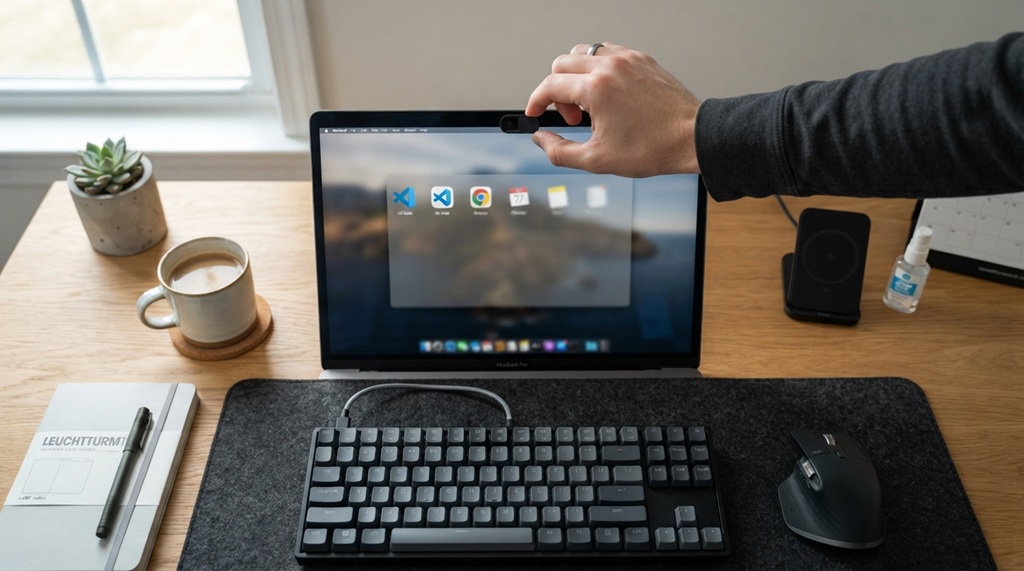
Some smart TVs have cameras too. Put tape over them if you’re concerned. Check your router’s admin panel regularly and review which devices are connected.
Any unknown device needs investigation.
Traveling abroad increases both surveillance and SIM-swapping risks. Hackers in airports and hotels are especially active. Use a VPN before connecting to any network. Be aware that some countries, including China, Russia, and Iran, restrict VPN usage.
Use an eSIM for mobile data instead of a physical SIM card to avoid having your number hijacked. Keep your physical SIM in a secure location.
Online shopping is a magnet for fraud. Use a virtual credit card number when checking out at unfamiliar stores. Many banks offer this feature through their apps. Apple Pay and Google Pay are alternatives, they generate unique device tokens so merchants never see your actual card number.
Retain physical cards for in-person purchases only.
Urgent messages claiming to be from banks or government agencies are red flags. Phishing is the most common way accounts get compromised. A phony email asks you to verify your account, click a link, or enter your password. Real organizations never send unsolicited links.
If you get a suspicious message, go directly to the official website or app, don’t click the link.
The underlying principle is simple: matching your protection to your risk. A journalist covering a dictatorship needs far stronger measures than a retiree browsing Facebook. Assess your situation honestly and act accordingly.
Mistakes to Avoid: What Most People Still Get Wrong
Even with the right tools, people undermine their own privacy with avoidable errors. Here are the most common ones we see in our research.
Deactivating instead of deleting accounts. Deactivation hides your profile but keeps your data on the server. Deleting removes it. If you’re done with a platform, delete the account.
It takes a few extra clicks, but it’s the only way to actually leave.
Assuming a breached password is safe if you changed it once. If a site you used gets hacked, your password is out there forever. Change it immediately, but also check if you reused that password anywhere else. Tools like Have I Been Pwned tell you which of your accounts appear in known breach data.
Check your main email address regularly.
Ignoring backup codes for 2FA. When you set up an authenticator app, you get recovery codes. Most people skip saving them. When they lose their phone, they’re locked out of everything.
Print those codes and put them in a safe place. It takes thirty seconds and saves hours of recovery pain.
Using free VPNs without reading the fine print. If a VPN doesn’t charge money, it’s probably selling your data. The only free option worth considering is ProtonVPN, which is funded by paid users and operates on a transparent privacy policy. Everything else is suspect.
Oversharing on social media even with a private account. Private settings only protect you from strangers. Your friends can still share your posts, screenshot your photos, and tag you in embarrassing content. Think before you post.
Once something is digital, it’s never fully under your control.
Falling for phishing messages that look legitimate. A text from your bank saying your account is frozen. An email from your CEO asking for gift cards. These are social engineering attacks.
Real organizations never ask for passwords or payment details via unsolicited messages. When in doubt, call the official number on their website.
Leaving old devices full of personal data. That old phone in your drawer, the laptop from your last job, they’re goldmines for anyone who gets their hands on them. Factory reset everything before you sell, donate, or recycle. Encrypt the drive if the option exists.
Even better, physically destroy the storage drive if the device is beyond repair.
Using the same password for your email and your bank. Your email is the master key. If it’s compromised, everything else falls. Bank logins are obvious targets.
Keeping them identical is like taping your spare key to your front door.
The common thread is complacency. Privacy isn’t a one-time task. It’s an ongoing practice that requires attention and regular check-ins.
Frequently Asked Questions
Is a VPN really necessary for everyday browsing?
If you mostly use home Wi-Fi and trusted networks, a VPN is less critical but still valuable. It encrypts your traffic so your internet service provider can’t see what you do. That means no targeted ads based on your browsing history and no selling your data to third parties.
On public Wi-Fi, a VPN is non-negotiable. On your home network, it’s a strong layer of defense. The best VPNs cost between $3 and $12 per month, which is a small price for peace of mind.
Can I trust Google with my data if I turn off tracking?
Turning off tracking in Google settings reduces the data Google collects, but it doesn’t stop all collection. Google still logs your searches, your location (if GPS is on), and your YouTube watch history. Getting a Google account is not required to use Google Search.
You can use DuckDuckGo for private searching, and you can use a privacy-focused browser like Firefox to minimize cross-site tracking. The best move is to limit Google’s reach by using alternative services for email and search.
How do I remove my personal info from data broker sites?
Start by searching for your name and city on sites like Spokeo, Whitepages, and MyLife. Each site has an opt-out form, usually in the footer or help section. You’ll need to verify your identity by clicking a confirmation link.
It’s tedious but free. If you want it done for you, services like DeleteMe handle the legwork for around $130 per year. Expect results within a week, but new listings can appear, so check back periodically.
What should I do if I think my identity has been stolen?
Act fast. Contact your bank and credit card companies to freeze your accounts. Place a fraud alert on your credit report with all three major bureaus, Experian, Equifax, and TransUnion.
File a report with the Federal Trade Commission at identitytheft.gov. Change your passwords and enable 2FA on everything. The sooner you act, the less damage a thief can do.
Are incognito mode and private browsing the same thing?
Yes, they’re the same feature with different names. Chrome calls it Incognito, Firefox calls it Private Browsing, and Safari calls it Private Window. The feature prevents your browser from saving history and cookies locally.
It does not hide your activity from websites, your internet service provider, or your employer. For actual privacy, use a VPN or Tor Browser.
How often should I review my privacy settings?
Twice a year is a good baseline. Companies change their privacy policies and default settings constantly. Set a calendar reminder for January and July.
Spend twenty minutes checking your social media settings, app permissions, and password manager for any weak or reused passwords. It’s a small investment that keeps your digital life locked down.
Final Recommendation: Your Personal Privacy Roadmap
You don’t need to implement everything at once. That’s how people get overwhelmed and give up. Start with a 30-minute quick setup, then build from there.
The 30-minute quick setup. Install a password manager. Turn on 2FA for your email. Switch your browser’s tracking protection to Strict.
Clear your cookies and site data. You’re already ahead of most people.
The two-hour deep clean. Audit your app permissions. Go through your social media privacy settings. Set up email aliases for newsletters.
Remove your info from three data broker sites. Review your smart home device settings.
Long-term maintenance. Set a quarterly reminder to check for data breaches using Have I Been Pwned. Review your bank statements monthly for suspicious charges. Update your software and apps regularly to patch security holes.
Back up your important files to an encrypted drive or service.
When to seek professional help. If you’ve been a victim of identity theft, consider a credit monitoring service. If you’re a journalist, activist, or public figure, consult privacy professionals who specialize in high-risk threat models. For everyone else, the steps in this guide are more than sufficient.
Privacy isn’t a destination. It’s a practice. The landscape shifts constantly, new threats emerge, and new tools appear.
The key is staying engaged and making small adjustments as things change.
You now have the knowledge to protect yourself online. You know which tools matter, which mistakes to avoid, and which situations demand extra caution. The rest is consistency.
Apply what you’ve learned, review your settings regularly, and you’ll be far ahead of the average internet user.