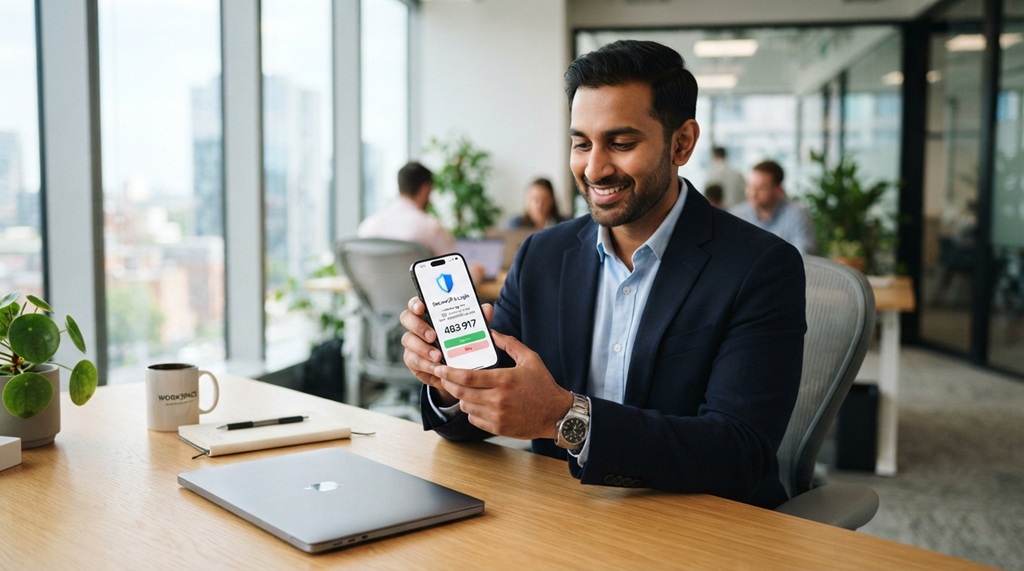
You type your password, hit enter, and you’re in. That single step has protected your accounts for decades, but it’s just not enough anymore. So what is two factor authentication, and why does every major platform keep pushing you to turn it on?
The short answer: it’s a second check that proves you’re really you, even if someone steals your password.
Think of it like locking your front door versus having a deadbolt. A password is the regular lock. Two-factor authentication adds the deadbolt, and it only opens with something you physically have.
As of 2026, over 80% of data breaches involve compromised passwords, which is why security standards like those from NIST now recommend 2FA as a baseline. Let’s walk through exactly how it works, which type you should use, and how to set it up without getting locked out of your own accounts.
Quick Answer
Two-factor authentication (2FA) adds a second verification step after your password. You prove who you are with something you know, plus something you have or are. That’s usually a code from an app, a text message, or your fingerprint.
Even if a hacker steals your password, they still can’t get in. It’s the single most effective way to protect your online accounts.
Key Takeaways: The Four Things You Must Remember About 2FA
- Passwords alone are fragile. They get stolen in data breaches, reused across sites, and phished from unsuspecting users every single day.
- Not all 2FA is equal. SMS codes are better than nothing, but authenticator apps are more secure, and hardware keys are the gold standard.
- Backup codes are your lifeline. If you lose your phone and didn’t save them, you can lose access to your accounts permanently.
- Set it up on your email first. Your email is the master key to everything else, so it deserves your strongest protection.
How Two-Factor Authentication Works (The Three Authentication Factors)
Two-factor authentication works by requiring two different types of proof before letting you into an account. Each piece of proof falls into one of three categories: something you know, something you have, or something you are. A password is something you know.
Your phone or a security key is something you have. Your fingerprint or face is something you are.
Most 2FA setups combine a password plus one of the other two factors. The key word here is “different.” If you use two passwords, that’s still just one factor. The whole point is that each layer comes from a separate category, so an attacker can’t easily steal both.
The Three Types of Proof: Knowledge, Possession, and Inherence
- Knowledge factors are things you know, like passwords, PINs, or security questions. Unfortunately, these are also the easiest for hackers to guess or steal.
- Possession factors are physical things you have, like a smartphone, a hardware key, or a smart card. An attacker would need to physically steal the device.
- Inherence factors are biological traits, like fingerprints, facial recognition, or voice patterns. These are hard to copy but not impossible to spoof.
Why a Password Alone Is No Longer Enough
Passwords have a fundamental flaw: they live on the internet. When you use a password on a website, that site stores it somewhere. Hackers target those databases constantly, and when they succeed, they publish the password lists online.
Since many people reuse passwords across sites, one breach can unlock dozens of accounts.
Even a unique, complex password isn’t safe from phishing. A fake login page that looks identical to your bank’s site can trick you into typing your credentials without realizing anything’s wrong. 2FA stops that attack cold, because the hacker gets your password but still lacks the second factor.
The Four Main Types of 2FA: Which One Should You Use?
There are four main ways to receive that second verification, and they’re not all created equal. Your choice depends on the account you’re protecting, your tolerance for inconvenience, and how valuable your data is to a hacker. Here’s the honest breakdown of each.
SMS Text Codes: Convenient but Vulnerable
SMS 2FA sends a one-time code to your phone via text message. It’s the most widely recognized method because it’s been around the longest and requires no extra apps. You type the code in after your password, and you’re done.
For someone setting up 2FA for the first time, it feels easy and familiar.
The problem is the delivery method. Text messages travel through your mobile carrier’s network, and hackers have found ways to intercept them. A technique called SIM swapping involves tricking your carrier into transferring your phone number to a new SIM card in the hacker’s possession.
Once that happens, all your texts, including your 2FA codes, go straight to them. The National Institute of Standards and Technology (NIST) has even discouraged SMS as a primary 2FA method for this reason.
Use SMS if: you have no other option, or you’re setting up 2FA for a relative who isn’t tech-savvy. It’s better than no protection at all, but it’s the weakest link in the 2FA chain.
Authenticator Apps: The Best Balance of Security and Convenience
Authenticator apps like Google Authenticator, Microsoft Authenticator, and Authy generate six-digit codes directly on your phone. The codes refresh every 30 seconds, and they’re created locally on your device rather than being sent over a network. That’s a crucial difference, because there’s no text message to intercept and no carrier involved.
Setup involves scanning a QR code on your computer screen with the app on your phone. From then on, the app produces codes that sync with the website’s server. Since the code never travels through a network, SIM swapping won’t help an attacker.
They’d need physical access to your phone, which is a much higher bar.
Use an authenticator app if: you want the best combination of security and ease for your personal email, banking, and social media. This is the default recommendation for most people.
Hardware Security Keys: The Gold Standard for High-Value Accounts
Hardware security keys are small USB or NFC devices that you plug in or tap to complete a login. They don’t display codes. Instead, they physically perform a cryptographic handshake with the website, proving you possess the key.
Brands like YubiKey and Google’s Titan Key are the most common examples.
These keys are nearly immune to phishing. Even if you type your password into a fake website, the key won’t authorize the login because it verifies the site’s identity first. That makes them ideal for protecting cryptocurrency wallets, work accounts, or anyone facing credible threats like journalists or executives.
Use a hardware security key if: you handle cryptocurrency, work in a sensitive field, or feel your accounts might be targeted specifically. They cost between $20 and $70, and they’re worth every penny for high-value accounts.
Push Notifications: Easy but Prone to “Push Fatigue”
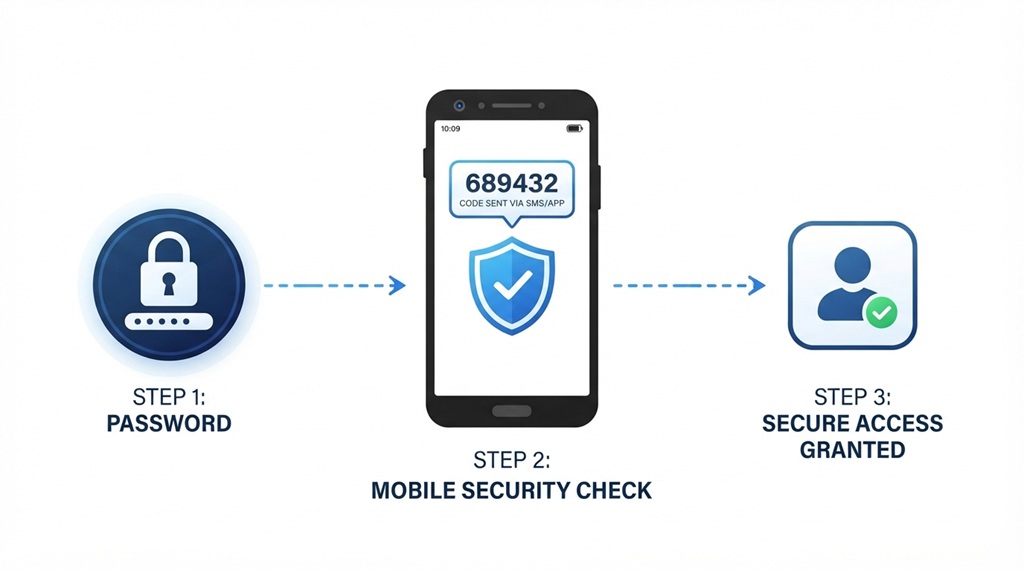
Push authentication sends a notification to your phone asking you to approve or deny a login attempt. You tap “Yes” if it’s you, and “No” if it isn’t. It’s arguably the fastest and easiest method, since there’s no code to type at all.
The catch is a phenomenon called push fatigue. If a hacker has your password, they can trigger dozens of login attempts in rapid succession. Your phone buzzes repeatedly until you tap “Yes” just to make it stop, granting them access.
Some platforms have added a safeguard, like requiring you to match a number displayed on the login screen. If your app doesn’t do that, consider switching methods.
Use push notifications if: you want maximum convenience and you’re on a platform that requires a confirmation number. Otherwise, an authenticator app is a safer bet.
Side-by-Side Comparison of 2FA Methods
| Method | Security Level | Convenience | Phishing Resistant | Best For |
|---|---|---|---|---|
| SMS Text Code | Low | High | No | First-time users, no alternatives |
| Authenticator App | High | Medium | Partially | Most personal accounts |
| Hardware Key | Very High | Low | Yes | Crypto, work, high-risk users |
| Push Notification | Medium | Very High | Partially | Quick logins, low-risk apps |
How to Set Up 2FA on Your Most Important Accounts (Step-by-Step)
Setting up 2FA takes about five minutes per account. You don’t need to do every account in one sitting. Start with the ones that matter most, then work your way down the list.
The process is similar across platforms, and once you’ve done one, the rest feel familiar.
Step 1: Start With Your Primary Email
Your email is the master key to your digital life. Password resets for your bank, social media, and shopping accounts all route through your inbox. If a hacker gains control of your email, they can reset every other password you own.
Open your email provider’s security settings and look for “Two-Step Verification” or “Two-Factor Authentication.” Google, Microsoft, and Apple all offer this under their account settings. Follow the prompts to set up an authenticator app. Most providers also offer backup codes during setup, which you’ll want to save immediately.
Step 2: Protect Your Financial and Social Accounts
Once your email is locked down, move to your bank, PayPal, and cryptocurrency exchange. Financial accounts are the most direct target for thieves. Social media accounts matter too, since a hijacked account can be used to scam your friends and family.
Most banking apps support 2FA through push notifications or SMS codes. Use the best method available on each platform. For crypto exchanges, a hardware key is strongly recommended if you hold meaningful amounts.
Step 3: Save Your Recovery Codes Immediately
Here’s where most people trip up. When you enable 2FA, the platform gives you a set of one-time backup codes. These are meant for emergencies, like when you lose your phone.
Store them somewhere safe. Print them and put them in a drawer, or save them in a password manager.
If you lose your phone and didn’t keep the codes, recovery becomes a nightmare. You’ll spend hours proving your identity through automated systems, submitting forms, and waiting for customer service. Don’t let that be you.
Save the codes before you close the setup window.
Step 4: Prepare for a Lost or Stolen Phone
Even with backup codes, losing your phone is stressful. Take a minute to plan ahead. Authenticator apps like Authy offer encrypted cloud backup, which lets you restore your codes on a new device.
Google Authenticator now offers a transfer feature between phones. Microsoft Authenticator has similar options.
Set up your new phone before you wipe the old one, if possible. Most apps require you to scan a QR code or enter a setup key to transfer the account. Doing this while both phones work is far easier than recovering after a loss.
Common 2FA Mistakes That Weaken Your Security
Even with 2FA enabled, people still get hacked. The problem isn’t usually the technology. It’s how people use it.
Here are the four most common mistakes we see in our research, and how to avoid them.
Mistake 1: Using SMS Codes When an Authenticator App Is Available
SMS codes are the easiest target for attackers. SIM swapping attacks have been on the rise for years, and carriers haven’t fully solved the problem. If your bank or email provider offers an authenticator app, use it.
The extra minute of setup time is worth the protection.
Mistake 2: Ignoring the Backup Codes
Most people skip saving backup codes because they think they’ll never need them. Then they lose their phone, and they’re locked out of everything. Print the codes.
Put them somewhere safe. Your future self will thank you.
Mistake 3: Confusing 2FA With Immunity From Phishing
2FA doesn’t make you invincible. If you approve a push notification without reading it, or type a code into a fake website, you’re still vulnerable. Always verify the login request is really from you before approving.
Mistake 4: Setting Up 2FA on Every Account Except the Ones That Matter
It’s easy to enable 2FA on your social media accounts and forget about your email. But your email is the master key to everything. Prioritize email, banking, and crypto first.
The rest can wait.
2FA vs. MFA vs. Password Managers: Where Does Each Fit?
These three terms get thrown around a lot, and people often confuse them. They’re related but distinct tools that work together. Here’s the breakdown.
Two-factor authentication specifically requires two different types of proof. Multi-factor authentication (MFA) is the broader umbrella term. It requires two or more factors, which is technically the same thing, but MFA can also include additional layers like risk checks. In practice, most people use the terms interchangeably.
Password managers are a separate tool entirely. They generate and store strong, unique passwords for every site you use. What makes them relevant to 2FA is that many password managers now support one-time codes alongside your passwords.
That means you can use your password manager as your authenticator app, keeping everything in one place.
Here’s how they stack up:
| Tool | What It Does | How It Relates to 2FA |
|---|---|---|
| Password Manager | Stores credentials | Can generate and store 2FA codes |
| 2FA App | Generates time-based codes | The second factor itself |
| MFA System | Combines multiple checks | The overarching security framework |
| Hardware Key | Physical cryptographic proof | The strongest second factor available |
Frequently Asked Questions About Two-Factor Authentication
Is two-factor authentication the same as two-step verification?
They’re similar, but not identical. Two-step verification usually means a password plus a code sent via SMS or email, which is technically one factor delivered two different ways. True 2FA requires two different types of proof, like a password and a fingerprint.
In practice, many platforms use the terms loosely, so check the settings to see what’s actually being used.
What happens if I lose my phone with my authenticator app on it?
If you saved your backup codes, you can use one to log in from a new device. If not, you’ll need to go through the platform’s account recovery process, which typically involves verifying your identity through alternative means. That’s why saving backup codes during setup is so critical.
Can 2FA be hacked?
Yes, but it’s much harder than bypassing a password alone. The most common attacks involve SIM swapping for SMS codes and phishing for push notifications. Authenticator apps and hardware keys are significantly more resistant to these attacks.
Does 2FA work on all websites?
Most major platforms support it, including Google, Microsoft, Apple, Facebook, and most banks. Smaller or older websites may not offer it. For sites that don’t, using a unique, complex password through a password manager is your best alternative.
How long does it take to set up 2FA?
Most accounts take about two to five minutes to configure. Scanning a QR code, entering a verification code, and saving backup codes is the full process. Doing it for your email, bank, and social media accounts takes roughly 15 minutes total.
Is 2FA worth it if I have a strong password?
Yes, absolutely. A strong password protects you against guessing and brute-force attacks, but it does nothing against data breaches or phishing. 2FA adds a second layer that stops those attacks cold, even if your password is compromised.
Final Recommendation: Your 10-Minute Setup Plan for Better Account Security
Two-factor authentication is the closest thing to a guaranteed win in cybersecurity. It’s free, quick to set up, and dramatically reduces your risk of being hacked. The only real cost is a few extra seconds each time you log in.
Start with your email account, since it’s the gateway to everything else. Use an authenticator app rather than SMS if your provider supports it. Save the backup codes immediately.
Then move on to your banking, crypto, and social media accounts.
If you handle cryptocurrency or work with sensitive data, invest in a hardware key. It’s the single best purchase you can make for your digital security. For everyone else, a free authenticator app is more than sufficient.
Install the app now, set up your first account, and save those backup codes. Ten minutes today saves you from a potential disaster tomorrow.
How to Set Up 2FA on the Most Common Platforms
The exact steps vary by platform, but the pattern is consistent across all of them. Here’s a quick reference for the biggest ones:
Google (Gmail): Go to your Google Account settings, select Security, then find “2-Step Verification.” You’ll be prompted to sign in again, then you can choose your preferred method. Google strongly recommends its own Authenticator app or hardware keys.
Apple (iCloud): Apple calls it “Two-Factor Authentication” and it’s built into your Apple ID settings. You’ll see a prompt on your trusted devices when you sign in. Apple doesn’t offer an authenticator app in the traditional sense; instead, it relies on device-based approval and will text a code to your number if you have no other devices available.
Microsoft (Outlook, Windows): Under your Microsoft account security settings, you’ll find “Security info” and the option to add a sign-in method. You can register an authenticator app, a phone number for codes, or a hardware key. Microsoft Authenticator is particularly smooth here because it supports passwordless sign-in and multi-device sync.
Banking apps: Most major financial institutions support either SMS or a push notification through their own mobile app. Some are moving toward authenticator apps, but adoption is slower in the banking sector.
If you can’t find the setting, search the platform’s help center for “2FA,” “two-step verification,” or “security key.”